Follow these steps to permanently hide "Input Indicator" icon in Taskbar notification area:
1. Open Control Panel and click Language .
2. Click Advanced settings in the left-side pane
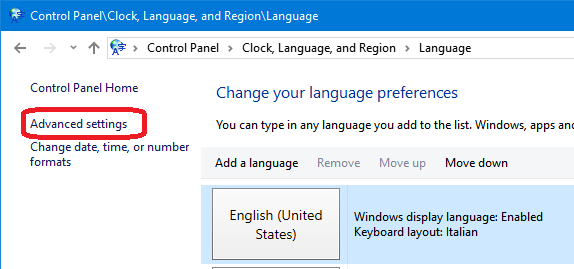
3. Enable Use the desktop language bar when it's available option in "Switching input methods" section.

4. Click Options button and set Language Bar option to Hidden.
Save the changes and it'll permanently remove Input Indicator icon from Taskbar notification area and it'll no longer reappear upon system restart.
Tested on Windows 10.
Via.

